

We have all dealt with that creeping feeling of dread that hits right after a long holiday, the moment when the fun ends and reality sets back in. The chores you pushed off, the emails (hoping to find you well) needing replies, the to-do list that’s suddenly three miles long—all waiting for you with baited breaths. Post-holiday blues are tough, and getting back to regular life and its regular chores is even worse. In these times, the last thing you need is distractions, making you procrastinate on tasks that are already long overdue. Unfortunately for us, the biggest distraction of all is none other than the device that is always right by our side—the phone.
As it turns out, our parents were right all along! Holiday slump or not, it is the damn phone that is making us lazy—feeding us tiny hits of dopamine while our responsibilities sit neglected in the corner. But here’s the twist: what if the phone itself could help fix the mess it created? This is where Apple’s Focus feature comes into play, helping you tune out the noise and give your full attention to what actually matters. That’s right, the very device responsible for most of our distraction-fueled chaos actually comes with its own built-in cure. The quicker we learn to master it, the better it is for us.
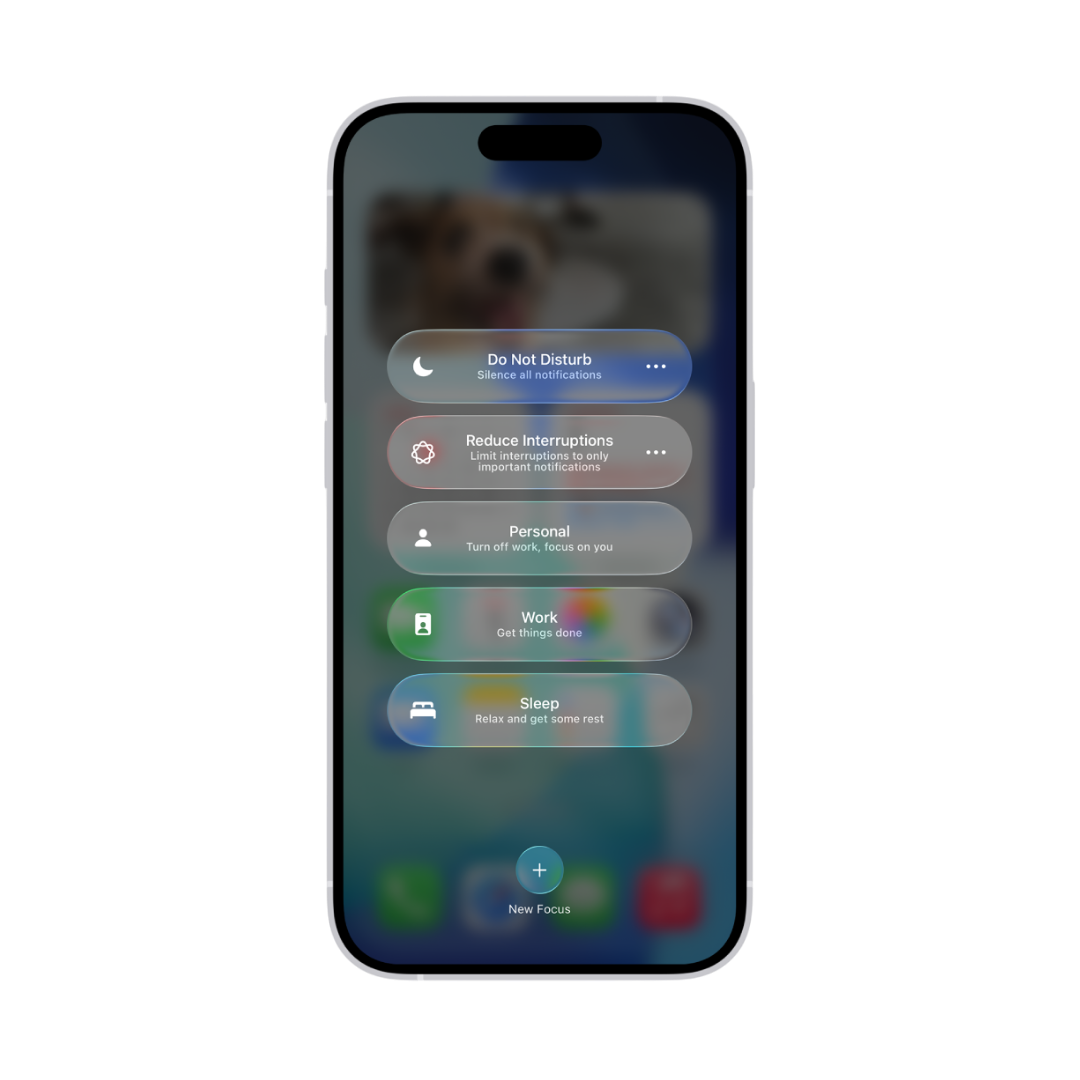
The Focus feature works by minimizing interruptions so you can get things done more efficiently. It allows you to choose from preset modes like Work, Sleep, or Personal, or even customize your own category. Once it’s on, the Focus feature can silence all notifications—or allow only the ones that are important. Makes you wish you had one of these in your brain, doesn’t it?
How To Use Focus Filters?
While you can zone the entire world out using Focus if you wanted to, it is usually in our best interests to not do so, in case of any personal or work related emergencies. With Focus filters’ help, you can control which people and apps are allowed to reach you. For instance, you might let calls from family through while muting everything else, or allow notifications only from certain apps while keeping social media quiet. Here’s a step-by-step breakdown of the entire process:
- Go to Settings > Focus, then tap the Focus you want to add filters to.
- Scroll down to Focus filters, then tap ‘Add Filter’.
- Tap an app or system filter, then select the information from that app you want to use during the Focus.
- Tap ‘Add’ to complete the process and you are good to go.
How To Create A Custom Focus?
If your focus needs go beyond the already existing ones in your iPhone, you can always customize them. Here’s how you do it:
- Go to Settings > Focus.
- Tap the plus sign at the top right, then tap ‘Custom’.
- Enter a name for your Focus, then tap ‘Return’.
- Choose a colour and an icon to represent your Focus, then tap ‘Next’.
- Tap ‘Customize Focus’, then set up the options for your custom Focus.
For those who have Apple Intelligence turned on, there’s also a ‘Reduce Interruptions Focus’ feature. This mode uses AI to prioritise only the most important notifications, making sure you’re alerted only when something truly needs your attention. However, given that it’s Apple Intelligence (which is not particularly known for its intelligence!), I wouldn’t rely too much on it.
And if you use multiple Apple devices, turning on ‘Share Across Devices’ keeps your Focus settings synced everywhere—so your iPhone, iPad, and Mac all know when you’re trying to concentrate.
Focus might look like a small feature, but it can make a huge difference, especially when you are having trouble remembering what productivity feels like. It can help you put an end to the doomscrolling (aptly named) and get some work done.
So, for once, let the brain rot actually rot. The memes and the reels, they’ll survive without you for a few hours. In the meantime, you can catch up on those grown-up responsibilities that have been craving for your attention. Once you’ve conquered those, the internet—and all its beautiful nonsense—will still be right there, ready to welcome you back with open arms and questionable algorithms.
Now excuse me… while I go and check my feed. It’s been far too long!