

With every major iOS update, our iPhones feel a little… different. It’s like new tenants moving into a home—they need a little time to settle in, figure out the space, and get comfortable.However, these “settling-in” moments can come with one frustrating side effect: rapid battery drain. And while iPhones aren’t exactly known for their marathon battery performance, new updates can make their already modest endurance feel even lesser.
So if your iPhone is taking longer than expected to adapt to iOS 26 and the battery seems to vanish faster than ever, don’t panic. There are several simple, effective steps you can take to help preserve your iPhone’s battery life.
1. Switch to Dark Mode
Dark Mode isn’t just easier on the eyes (literally and figuratively)—it’s kinder to your battery too, especially if you have an iPhone with an OLED screen. Dark pixels use less power than bright ones, so enabling the Dark Mode can give your battery a noticeable boost, particularly during heavy phone usage which I guess is always for most of us.
2. Turn off Always-On Display
Always-On Display looks cool and convenient, but it constantly uses power to keep the screen updated. It’s similar to leaving the lights on in an empty room—all day. If battery life is a priority for you, consider turning this feature off. You’ll still get notifications, but your iPhone won’t be working overtime to display the time, widgets, or other information all day.
3. Reduce Screen Brightness
Your screen doesn’t need to shine like the surface of the sun. Dialing down the brightness (or letting auto-brightness do it for you) can stretch your battery life significantly. Plus, your retinas will probably send you a thank-you note.
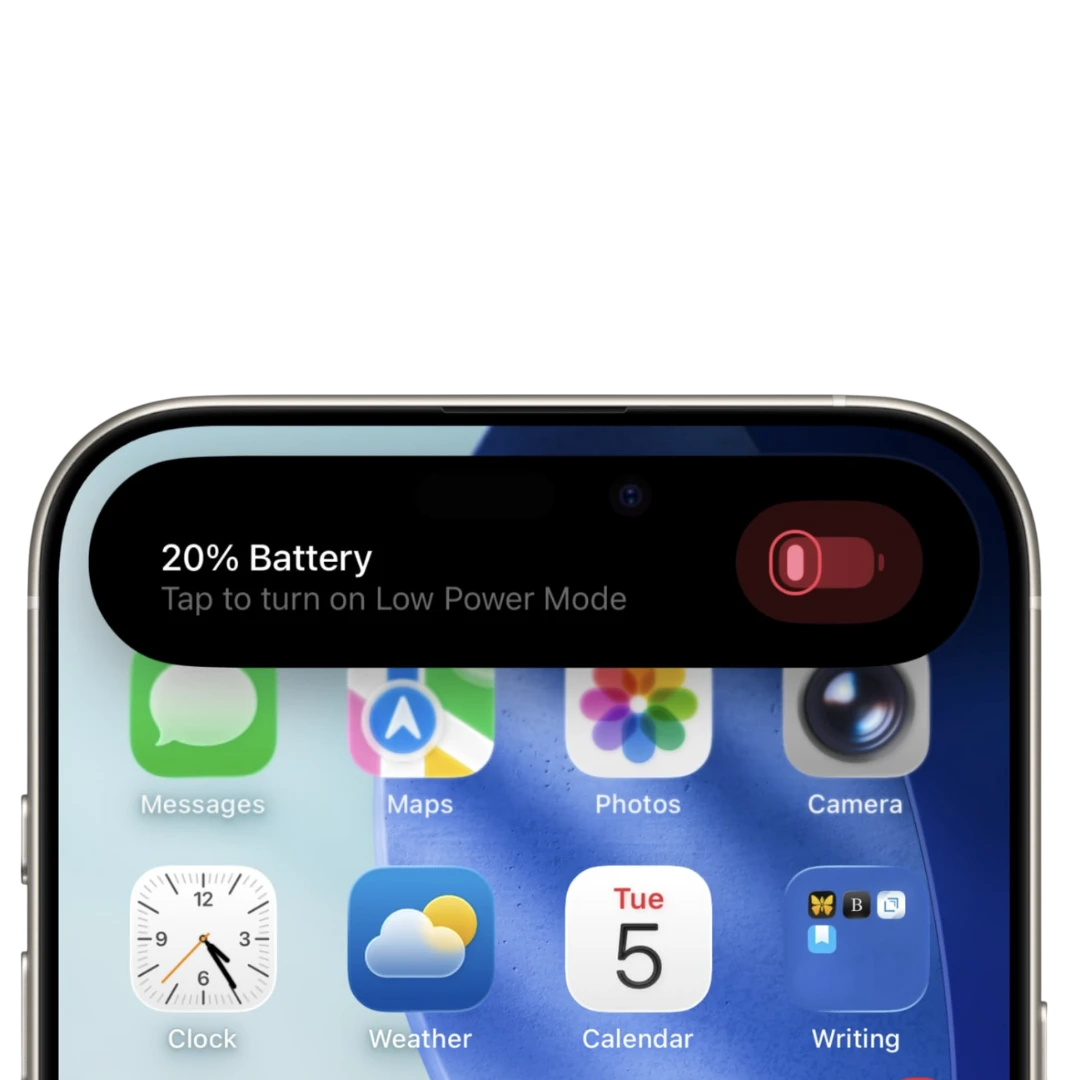
4. Turn on Low-Power Mode
Low-Power Mode is like giving your iPhone a mini-vacation. It temporarily reduces background activity, automatic downloads, and visual effects. So whenever your battery feels threatened, you can switch to low-power mode and you’ll be surprised with how big of a difference it can make.
5. Disable Locations for Unnecessary Apps
Do you really need all your apps to know your location at all times? Probably not, right? So, head to Settings > Privacy > Location Services and disable or limit location access for apps that don’t really need it. This simple step can reduce background drain and helps protect your battery life (and your privacy).
6. Reduce Screentime
I know this must come as quite a shock, but the best way to save battery is to… stop using your iPhone so much. If your battery’s tanking faster after the iOS 26 update, maybe it’s the universe telling you to take a little break. Go outside. Touch some grass. Stare at a cloud. Remember what people looked like before FaceTime.
While iOS 26 continues to settle into your device, these simple tweaks can make a world of difference. Think of them as little protective shields for your battery—they won’t stop all drain immediately, but they’ll buy your battery—and your sanity—some much-needed relief while iOS 26 settles down.