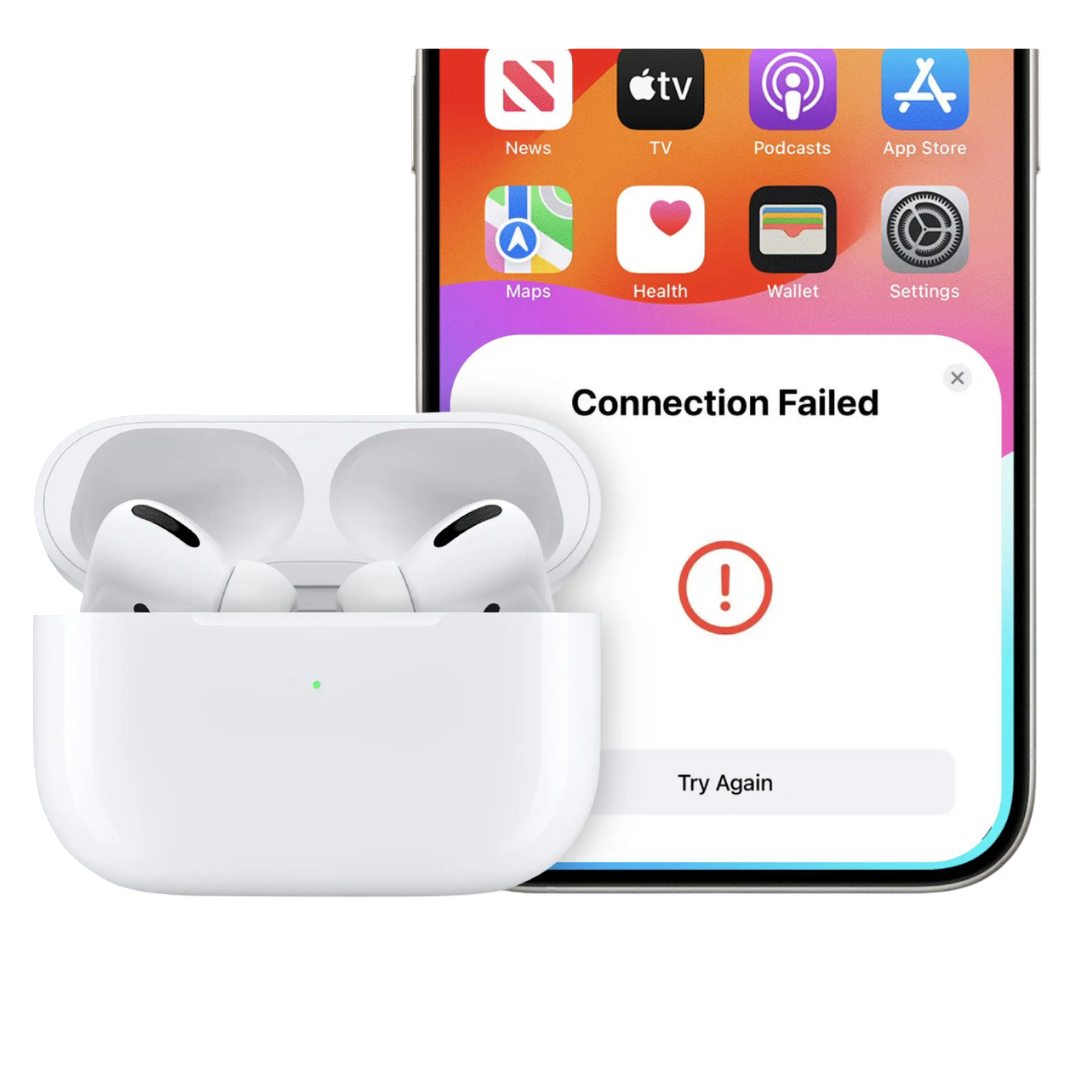

Picture this: you’ve curated the perfect playlist for your commute, your gym session, or a relaxing stroll. You press play… and suddenly, your phone starts blasting music out loud. Why? Because your AirPods decided to disconnect randomly. Or maybe you’re crammed into a crowded train, you get an important call that you need to pick up right away, and just as you start speaking—you hear silence on the other end. Your AirPods have disconnected. Again.
It’s frustrating, we get it. One of the biggest selling points of AirPods is their wireless convenience and seamless Bluetooth connectivity. So when they act out like this—especially in public—it’s equal parts annoying and embarrassing. This is one of those classic AirPods glitches that seem to show up at the worst possible time. Let us help you fix that—or at least try to.
Check Battery
Let’s start with the obvious: your AirPods’ battery level. It might sound like a no-shit Sherlock kind of advice (because it is), but low or inconsistent battery power can cause frequent disconnections. So, make sure that both your AirPods and its case are properly charged.
Hit Reset
Over time, regular use of your AirPods can lead to performance hiccups, like connectivity problems and poor battery life. A simple reset can ease this problem by erasing the AirPods’ pairing history and refreshing their settings. Here’s what you need to do—
- Unpair your AirPods by selecting Bluetooth and clicking on the ‘Forget This Device’ option.
- Follow this by opening the case with the AirPods inside and then pressing the setup button for around 10-15 seconds. As the case light changes its colour from green to white, your device has been reset.
- Now, reconnect the AirPods.
You can also try resetting your iOS device’s network settings. Sometimes your phone’s network settings can get overloaded with old Wi-Fi networks and Bluetooth devices. This clutter can cause AirPods glitches—like random disconnections or poor pairing. To fix this issue, you need to—
- Select Settings > General > Transfer or Reset [iOS device].
- Select Reset > Reset Network Settings.
These methods should work, but if they don’t, read ahead!
Try Deactivating Automatic Switching
Apple’s multipoint Bluetooth feature—automatic switching—enables newer AirPods models to seamlessly move between devices linked to the same iCloud account. However, these switches can make it seem like the AirPods are disconnecting, when in fact, they are simply switching devices. You can avoid this device hopping in the following manner—
- Connect your AirPods to your iOS device and select Settings > Bluetooth.
- Select the ‘i’ icon beside your AirPods’ name, then select Connect to This [iOS device name] > When Last Connected to This [iOS device name].
Your Device Is Updated, Right?
This one’s again a no-brainer advice, but as you know, outdated iOS versions can lead to all sorts of compatibility issues and materialize as an AirPods glitch. So make sure that your device is updated to the latest iOS version out there.
If you’ve tried everything we suggested and your AirPods are still acting up, it might be time to consult Apple Support or visit a service center. There could be a deeper hardware issue at play—like a faulty sensor or damaged component.
These steps apply to all AirPods and AirPods pro models—old and new alike.